
Common Printer Issues Troubleshooting Tips and Solutions
Common Printer Issues Troubleshooting Tips and Solutions
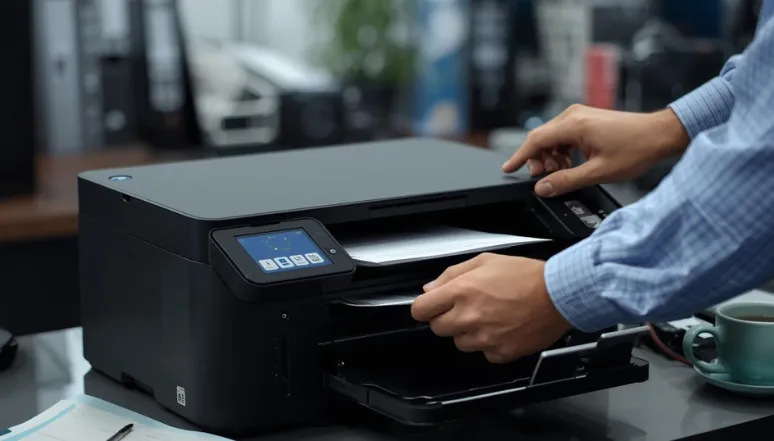
Printers are a staple of modern offices, playing an essential role in producing important documents, reports, marketing materials, and more. However, few things can disrupt the workday faster than a printer that stops working when you’re facing a tight deadline.
This guide will walk you through some of the most common printer problems and provide quick, practical solutions you can try yourself. From basic connectivity checks to more advanced software resets, these step-by-step troubleshooting tips can help get your printer back up and running before you need professional assistance.
You’ll also find helpful tips for resolving common issues such as poor print quality, colour printing problems, connectivity errors, and printer software issues.
Start with the Essentials
Before moving on to more advanced troubleshooting, start by checking the basics:
Make sure the printer is turned on, all cables are securely connected, and the power source is working properly.
Check that the paper tray is loaded correctly with the appropriate paper size and type. Remove any jammed, damaged, or curled sheets.
Confirm that the ink or toner cartridges are installed correctly, have sufficient ink or toner, and are compatible with your printer.
These simple checks can often resolve common printer problems. If your printer is still not working, continue with the troubleshooting steps below.
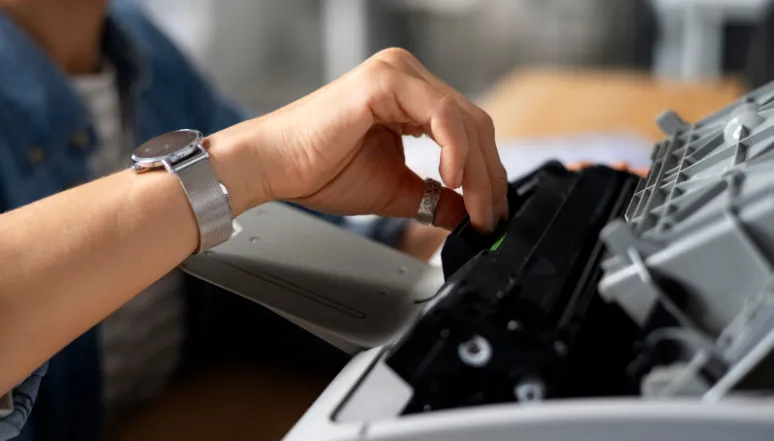
1. Check Your Printer Connection
One of the most common printer problems occurs when the printer is powered on but does not respond. In many cases, this indicates a connectivity issue. You may notice that the printer appears offline on your computer or receive a “printer not found” error.
Fixing Printer Connection Problems
Restart the printer and computer. A simple restart can clear temporary software or connection issues.
Check the network or cable connection:
For USB or Ethernet printers, make sure the cable is securely connected at both ends.
For Wi-Fi printers, confirm that the printer and computer are connected to the same network.
Run a test print. Once the connection has been restored, send a test page to confirm that the printer is communicating properly.
If the printer still cannot connect, the problem may be related to your network or Wi-Fi settings. Check your network configuration and confirm that the printer is connected correctly.
2. Check for Security or Access Restrictions
Some printers have built-in security features that control who can print, scan, or access specific functions. If your print jobs remain stuck and are not released, the problem could be related to permissions or authentication rather than a hardware issue.
You may be prompted to enter a PIN or password, or you may notice that print jobs are waiting for authorisation.
Managing Security and Access Restrictions
Check whether the printer requires a PIN, password, or user authentication before releasing print jobs.
If you are using the printer in a workplace, make sure you have the appropriate permissions to print.
Check the printer’s control panel to determine whether your account or device is being restricted.
If required, contact your IT administrator to verify your printing permissions and security settings.
If the printer continues to block print jobs, the issue may be caused by a network or organisational policy. In this situation, contact your IT team or administrator rather than attempting to bypass the security settings.
3. Check the Print Queue
The next step is to check your print queue. Print jobs can sometimes become stuck, duplicated, or stalled, preventing new documents from printing. In some cases, the problem may be related to the Print Spooler, a Windows service that manages print jobs.
You may be dealing with a queue or spooler issue if documents appear as “Pending” or “Error” in the queue, or if print jobs disappear without anything being printed.
Fixing Print Queue and Spooler Problems
Clear the print queue. Open the printer queue on your computer, cancel all pending documents, and then try sending the print job again.
Restart the Print Spooler service:
Windows: Press Windows + R, type
services.msc, find Print Spooler, right-click it, and select Restart.Mac: Open System Settings > Printers & Scanners, select your printer, and open the print queue. Cancel or pause any stuck jobs.
Test the printer again. After clearing the queue, send a single-page document to check whether the problem has been resolved.
If print errors continue to appear, the problem may be related to an outdated or incompatible printer driver.
4. Update Your Software and Drivers
Printer drivers act as a link between your computer and printer. If a driver is outdated, corrupted, or incompatible with your operating system, the printer may not process print jobs correctly.
Driver issues can cause certain features, such as duplex printing or colour options, to stop working. In some cases, a printer may stop working altogether after a Windows or macOS update.
You may encounter error messages such as “Driver unavailable,” “Unsupported format,” or “Incompatible printer driver.”
Fixing Software and Driver Problems
Download and install the latest compatible printer drivers from the manufacturer’s official website.
Make sure your computer’s operating system is fully updated.
After installing updates or drivers, restart both the printer and computer to refresh the connection.
If the same errors continue after updating the drivers, the existing driver may be corrupted or incompatible with your system. In that case, consider contacting IT support or a qualified printer technician for further assistance.
5. Review Print Settings and Alignment
Crooked text, clipped margins, or printed pages that look different from what appears on your screen can often be caused by incorrect print settings or alignment issues. These problems do not necessarily indicate a hardware failure. In many cases, adjusting the page settings or recalibrating the printer can resolve them.
Fixing Print Settings and Alignment
Check your print preferences. Before sending a print job, verify the paper size, page orientation, scaling, and other relevant settings.
Run an alignment or calibration test. Use your printer’s control panel to print an alignment or calibration page.
Reset the alignment. If your printer includes manufacturer software with alignment tools, use it to recalibrate the printer.
When to Call a Professional
The troubleshooting steps above can resolve many common printer problems. However, some issues require professional attention. If your printer continues to shut down unexpectedly, overheats, makes unusual mechanical noises, or shows other signs of hardware failure, avoid attempting repairs yourself.
A qualified printer technician can diagnose the underlying problem and determine whether the printer needs to be repaired, serviced, or replaced. Professional assistance can also help prevent further damage and get your printing equipment back to reliable working condition.